
These guides cover the public Azure DevOps Marketplace extension, its current permissions, personal storage, evidence boundaries, and supported environment.
Looking for QaCockpit Cloud documentation?01
Prioritize without flattening every project into one score
Quality Board Overview shows project health, evidence freshness, current failures, and missing configuration across the projects the current user can access. Project state remains visible instead of being hidden by a large total.
- Use project health to decide where attention is needed.
- Keep stale or missing evidence distinct from a clean result.
- Open the affected Project Cockpit instead of stopping at a chart.
- Never disclose inaccessible project names or aggregate their hidden counts.
Six summary cards show Projects, Pipelines, Monitored pipelines, Pipelines with tests, Test pass rate, and Failed tests. Test pass rate uses passed and executed tests from the latest usable monitored results. Pipeline activity has its own Last 90 days period; it does not use the shorter Analysis window.
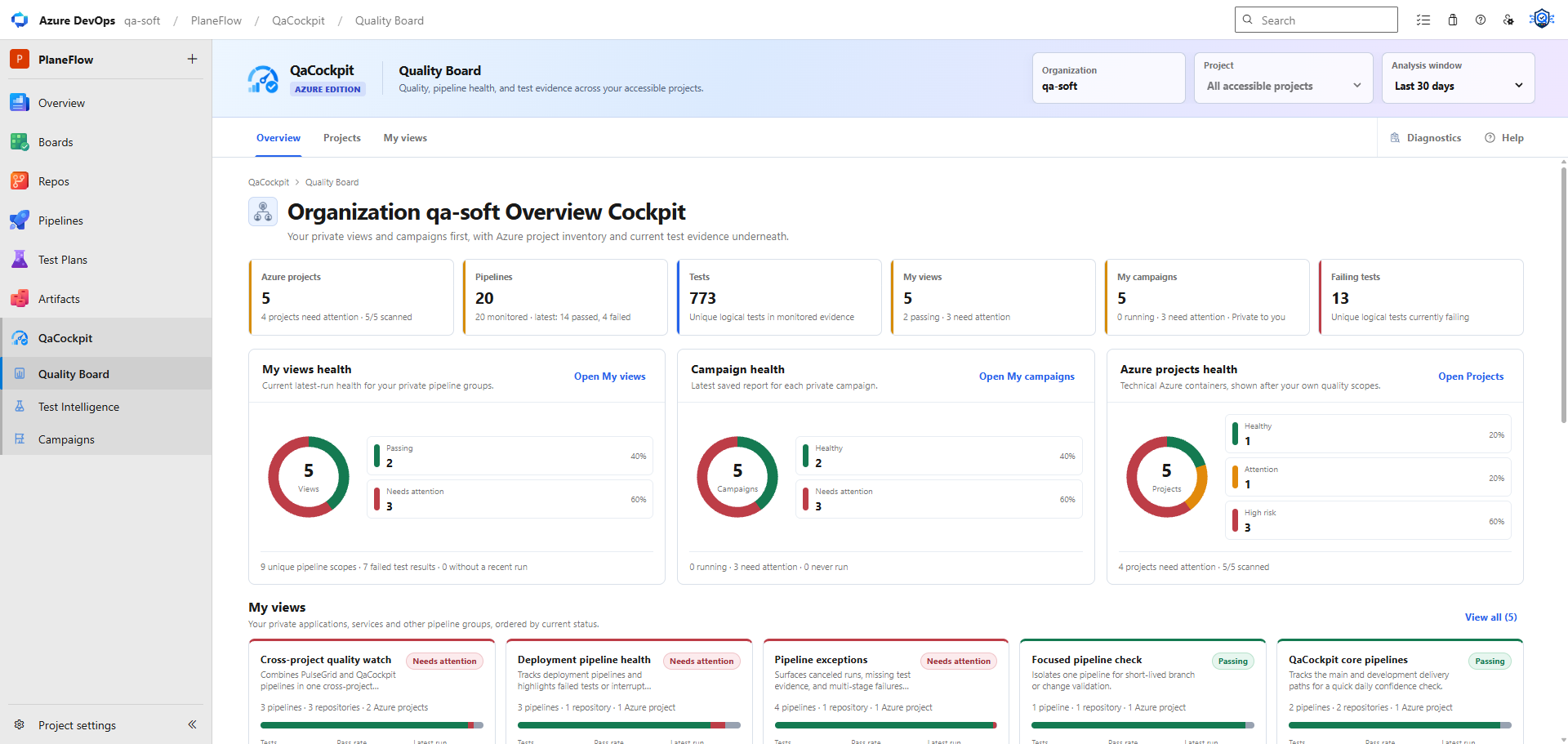
02
Open the evidence behind recent activity
Below the Project Health Matrix, Recent activity shows up to six recent monitored pipeline executions and your accessible private campaign reports. Each entry identifies its projects, time and status. Use View execution or View report to open that specific record.
The Analysis window filters activity to the last 7, 14 or 30 days. Executions use their start time; reports use their creation time, even when they reference older builds. A report spanning several projects appears once. Pipeline result, test counts and report collection status describe separate facts.
Loading, missing access and unavailable saved reports are shown explicitly. An empty activity list means there are no matching loaded records in the selected window; it does not prove that every pipeline has a clean result.
03
Follow an application or service in My views
My views lets you save a private group of 1–100 readable pipelines from your accessible projects in the same organization. Name the group, select its pipelines, and open the card to review Current state, Problems, Sources and the latest-result charts. Complete test reports shows how many selected pipelines have a complete, non-empty report; test counts are execution results, not a count of unique tests across pipelines.
Each source supports All branches or one Selected branch per pipeline, plus a No recent run threshold of 7, 14, 30 or 90 days, or Off. Existing views keep All branches and 90 days. A selected branch filters both the latest run and Recent history. If it has no visible run, the view shows No runs; another branch or an older successful result does not fill the gap.
Run age remains separate from the outcome: an old failed run still shows its failures. Off disables the freshness check while leaving the run age visible. Recent history loads up to five matching visible runs when expanded. Refresh reads current evidence; saving a view does not start pipelines or share it with another user. Results remain subject to Azure access and retention.